
Close your laptop.
Keep your place.
A running shell can continue after the browser closes.
Try reconnecting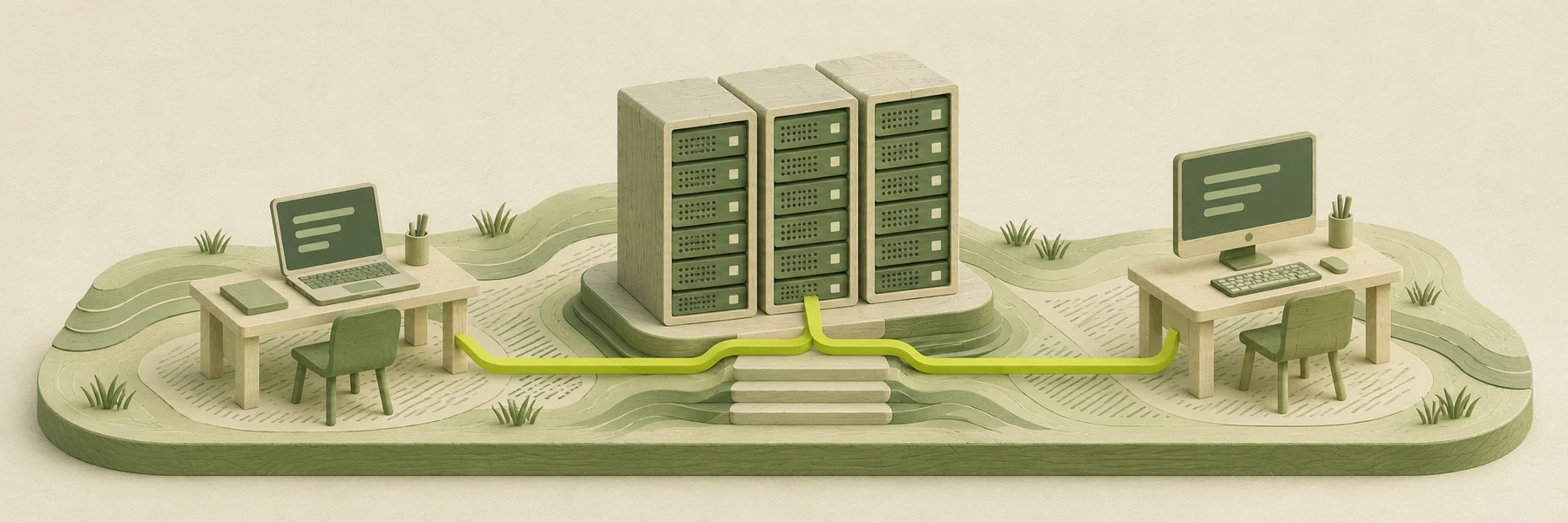
Your browser gives you access to the workspace. The workspace server holds your project and runs your tools. Your AI account supplies the models those tools use.
Try the browser Desk. Switch from launchpad to notes, start a different example tool, or open the Files tab to see what’s in the project.
 Personal workspace
Ready when you are. Your project is right here.
# Launchpad A place for your next idea. Your project files live in your workspace, alongside your tools. Open a terminal and make it yours.
Example project files.
A running shell can continue after the browser closes.
Try reconnectingUse your own subscription or API key. Your AI provider bills model usage separately.
Sign in from a different computer. Your saved files are already in the workspace.
Open a project to give your shell and coding tool the same working directory. When you switch tools, open the same folder to pick up the files and changes you’ve already made.
Each tool keeps its own conversation history. Save decisions in a project file such as the README so the next tool can read them. Use Git to keep a copy of changes outside the workspace.
Browse the example fileslaunchpad/README.mdSetup, commands, and project decisionssrc/Application source codetests/Checks to run before committingFollow the path from your workspace list to a project and its terminal. Select a step to see the example.
The workspace list shows what your account can open.
Open an existing folder from the Projects sidebar.
/workspace/launchpadREADME.md src/The project folder is the terminal’s working directory.
/workspace/launchpad$ git status --short
M src/index.tsYour terminal runs on the workspace server. Close the browser and a running session can continue while the workspace is online. Sign in again to return to it, including from another computer.
Closing a browser and restarting a server have different effects. A restart ends running processes. Saved files remain available.
$ npm run dev
Listening on port 3000The browser is connected to the project shell.
Ask an agent to investigate a bug in one terminal, then open a second shell in the same project to inspect its diff and run your tests before committing.
git diffRun the failing test in a shell. Give your coding tool the exact error and ask it to trace the failure to a specific file before changing anything.
npm testRun the project’s build command and inspect its output in the shell. Fix any errors in your workspace before publishing through your usual deployment service.
npm run buildWith your own VPS, you set up its server and decide how to reach it. A QIOI workspace comes with a managed server, an account Console, and a browser Desk.
Open your workspace and pick up your work.